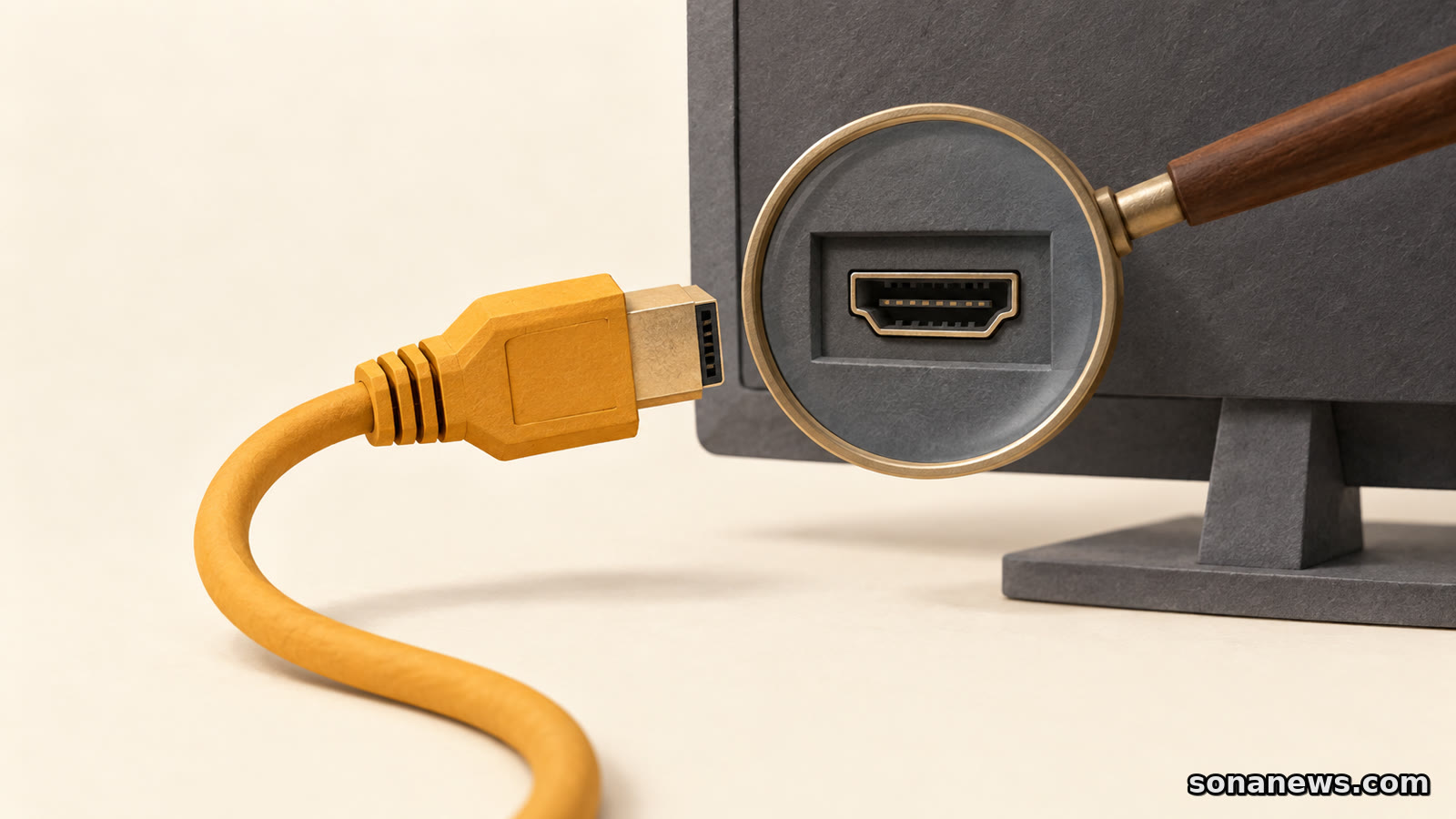
USB-C charges your laptop. Why is the monitor still blank?
A working charging connection does not prove that a USB-C cable or port supports video. Check the display path before buying another adapter.
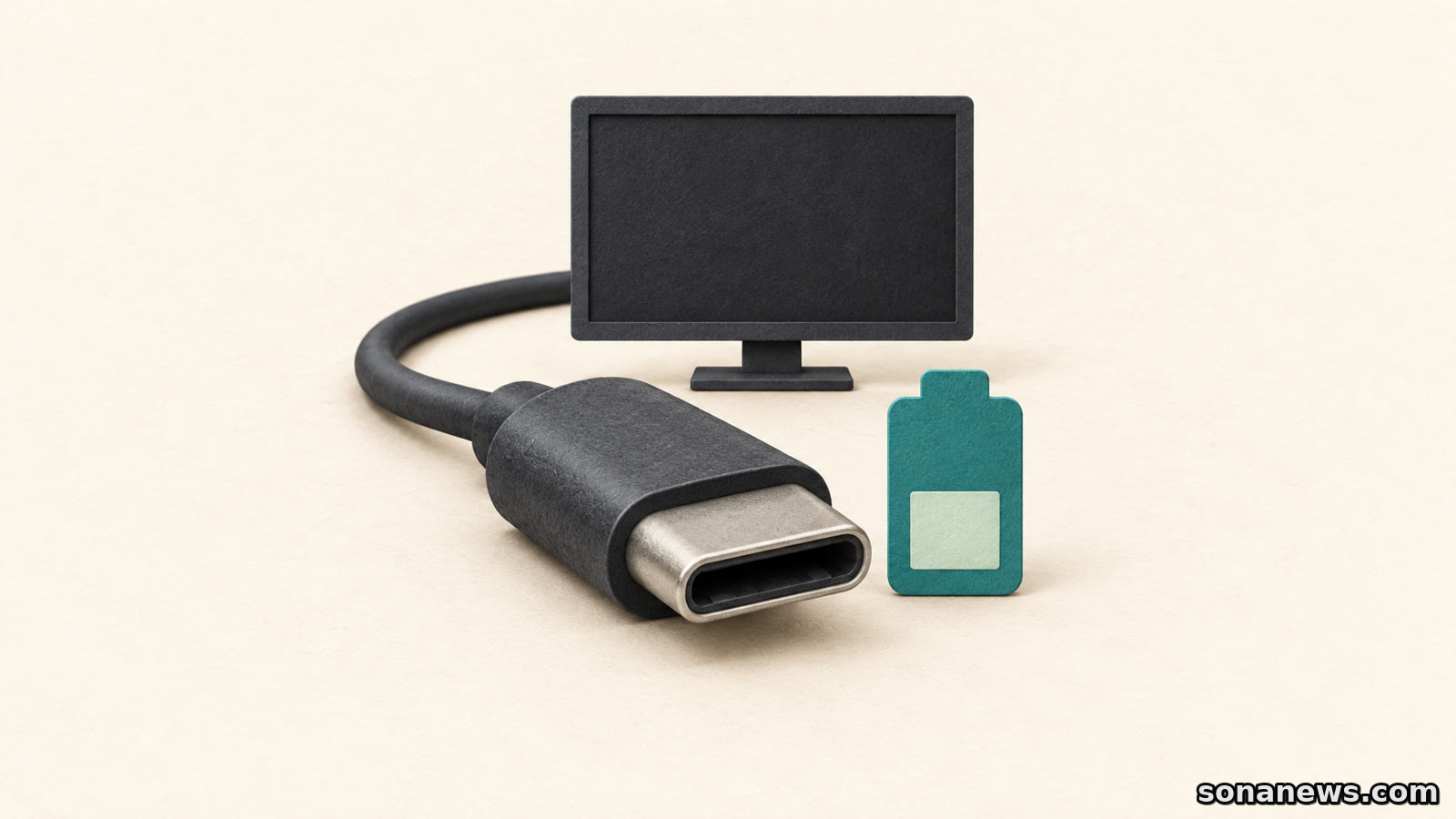

The laptop is charging, the USB-C plug fits, and the external monitor remains blank. It is tempting to treat the first two observations as proof that the cable works and the screen must be at fault. They establish much less: power is getting through. Video needs its own compatible route.
Microsoft's USB-C troubleshooting guide makes that distinction explicit. For a DisplayPort connection over USB-C, the computer, external display and cable must support the relevant display capability. A port or cable can offer some USB-C functions without offering the one the monitor needs. Buying a more powerful charger does not answer that question.
This is an existing compatibility problem, not a newly announced defect or a reason to replace every USB-C accessory. The useful check is to separate three things that share a connector: charging, ordinary USB data transfer and a display connection.
A cable's power rating tells you about charging capability. It is not a statement of display resolution or video support. A particularly clear example comes from Apple's current product listing for its two-metre 240W USB-C Charge Cable: it advertises charging at up to 240 watts and data transfer at USB 2 rates in the same description.
That pairing is not a contradiction. A cable can be designed for high-power charging without offering high-speed data transfer. Nor does a successful file transfer demonstrate that every display function is available. Treating “it charges” or “it syncs” as a complete compatibility test skips the feature you actually want to use.
The Apple listing illustrates the separation between power and data specifications; it is not a test of a particular reader's monitor. Before choosing a replacement cable, look for an explicit statement of compatibility with the display connection and performance you need. A large wattage number alone is not that statement.
VESA, the organisation behind DisplayPort, explains that DisplayPort over USB-C uses the connector's Alternate Mode extension. In ordinary terms, compatible equipment can use the familiar USB-C connection to carry a display signal as well as other supported functions.
The important word is compatible. The socket shape does not tell you which features a manufacturer has implemented. Microsoft's guide says the alternate mode must be supported by the computer's hardware and software and by the connected device or adapter; a suitable cable is also needed.
This is why the exact port matters. A USB-C display adapter belongs in a computer port that supports its required display mode, not merely any socket into which it fits. The laptop's specification or manual should identify the relevant capability. Where the documentation is unclear, ask the manufacturer about the exact model and port rather than inferring support from the connector's appearance.
Thunderbolt is another specification to check, not an interchangeable name for every USB-C connection. Apple's Mac adapter guide, for example, gives explicit display-adapter compatibility requirements involving DisplayPort Alt Mode or supported Thunderbolt standards. Matching the plug is only the physical part of matching the equipment.
A dock can make the desk tidier while making diagnosis less obvious. The route is no longer just computer, cable and monitor. It also includes the dock or adapter and any additional connection between that device and the screen.
Microsoft lists an unsuitable port, unsupported cable features and connection through a hub or dock among possible causes of limited display functionality. Its suggested checks include connecting the device or adapter directly to the computer and using the port that supports the appropriate mode.
A useful first comparison, where the equipment allows it, is therefore a manufacturer-supported direct connection without the extra hub. Keep the monitor and computer the same, and use a cable documented for that display connection. This narrows the question instead of changing the screen, charger, dock and cable at once.
The outcome is evidence, not a universal verdict. A picture through the direct connection points attention towards the removed part of the route or its compatibility. A blank display still leaves several possibilities. Neither result proves that every product from a brand is faulty, or that buying the most expensive cable will solve the problem.
“Supports an external display” is only the beginning of a specification. Resolution and refresh rate matter too. A connection suitable for one screen arrangement should not be assumed to support a different display at its maximum settings.
Apple's iPad display guidance is a useful illustration of how specific the requirements can become. It lists different display capabilities by iPad model and recommends a USB-C cable supporting high-bandwidth connections for high-resolution displays, such as the cable supplied with the display. It also notes that some USB-C displays can charge the iPad while connected.
Those are iPad-specific instructions, not a promise about every laptop. The wider lesson is to read the host, cable and display specifications together. If a dock or adapter sits between them, its supported configurations also belong in that check.
Before buying anything, make a short record: the computer model and exact port, the monitor model and intended input, the cable's model or documented features, and any dock or adapter in between. Add the resolution and refresh rate you want. That gives manufacturer support something concrete to assess and makes a replacement purchase less speculative.
If the documented capabilities do match but the screen stays blank, continue with the manufacturers' troubleshooting for that combination. Compatibility is a first check, not a diagnosis of every blank screen. The charging indicator can still be useful information. It just answers a different question from whether the monitor can receive a picture.
Editorial note. This is general technology information, not an electrical repair guide. Follow the equipment manufacturers' instructions and ask your organisation's IT team before changing a managed setup.
Sources
- Microsoft Support, “Fix USB-C problems in Windows”, Windows 11 section, retrieved 13 October 2026. Primary troubleshooting guidance for display compatibility across host, cable and device; exact-port requirements; hardware/software support for alternate modes; direct connection checks; possible hub/dock limitations. No claim that this diagnoses every blank screen
- VESA DisplayPort, “DisplayPort over USB-C”, retrieved 13 October 2026. Primary explanation of the Alternate Mode extension and coexistence of video, USB data and power. This is a legacy technical overview; its historical bandwidth/power maxima and example products are not presented as current universal limits
- Apple, “240W USB-C Charge Cable (2 m)”, current US product listing retrieved 13 October 2026. Verifies up-to-240W charging and USB 2 data rates. Used only to demonstrate separate specifications, not as evidence of a tested video failure or a universal cable rule. An older product URL redirected to search results and was rejected
- Apple Support, “Adapters for the Thunderbolt or USB-C port on your Mac”, retrieved 13 October 2026. Verifies display-adapter compatibility requirements and the need to match cable/adapter and host. No claim that every USB-C port supports Thunderbolt
- Apple Support, “Charge and connect with the USB-C port on your iPad”, retrieved 13 October 2026. Verifies model-specific display capabilities, high-bandwidth cable recommendation and charging from some USB-C displays. Device-specific claims remain attributed to iPad; no contested model list or universal resolution guarantee is reproduced
Help us improve
Was this article useful?
One anonymous tap helps Sona improve future reporting, headlines and source context.
Up next
Apple's repair labels distinguish reused components, unfinished calibration and parts it cannot verify. None is a complete verdict on a second-hand phone.
Continue readingMore in Tech