Before enabling Windows protected print, check the scanner too
A compatible printer can need reinstalling, and its scanner may not work in the same mode. Microsoft's driver change calls for a workflow check, not an automatic hardware replacement.
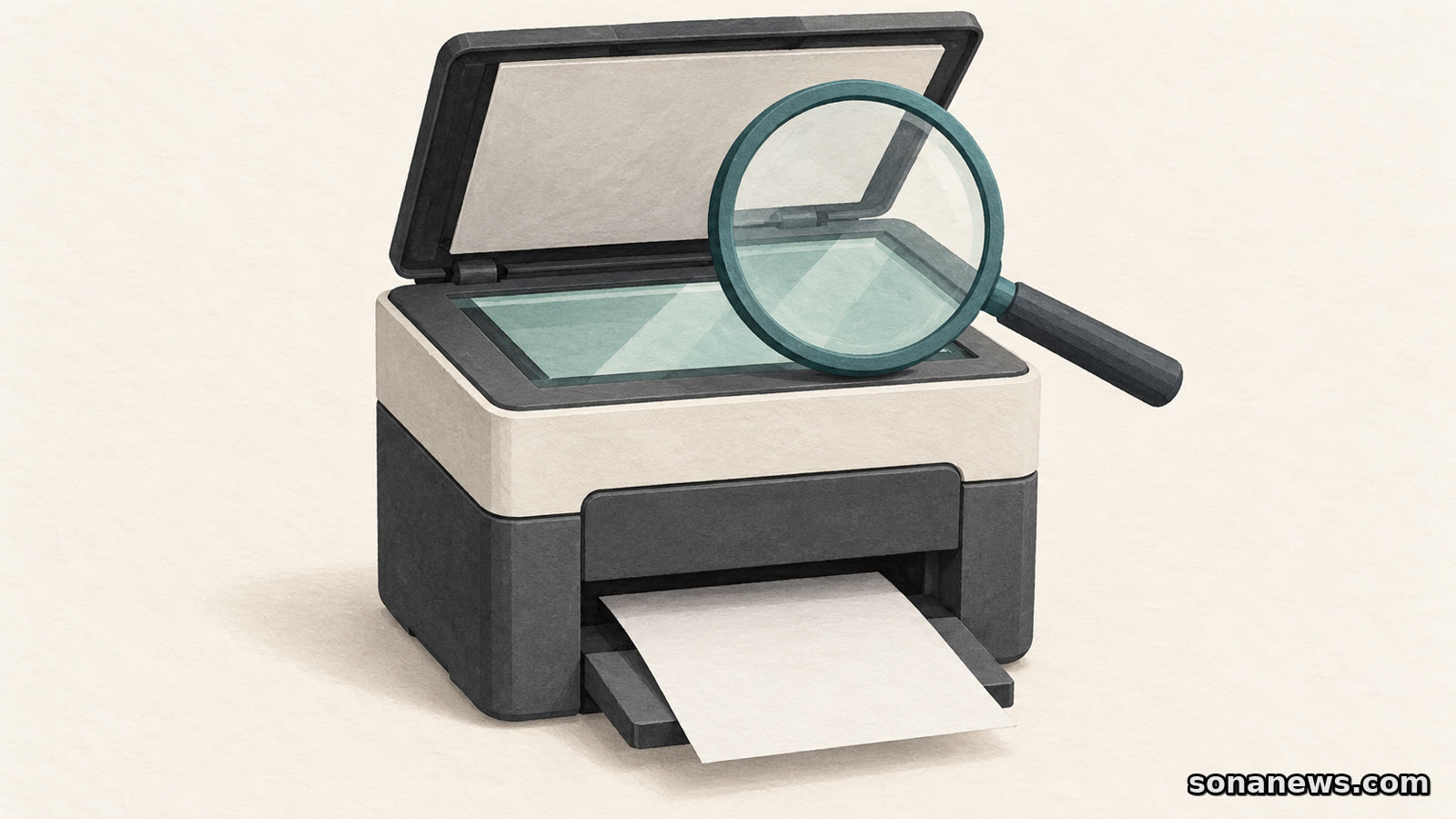

A printer disappearing from Windows after a settings change does not necessarily mean the machine is incompatible. Turn on Windows protected print mode and even a supported printer can be removed, because of the driver it was using. It may be possible to add it back. The scanner built into the same machine is a separate question.
That distinction matters before enabling the mode on a PC used for both printing and scanning. Microsoft's documentation says some compatible devices have scanners that are unavailable in protected print mode. A successful printed page is not proof that the whole multifunction device will work as before.
Windows protected print is a security setting, not a new printer connection or a blanket instruction to replace hardware. It restricts the PC to Windows Ready Print, Microsoft's printing approach that does not require third-party printer drivers. The practical task is to establish what the existing setup uses, which functions are supported, and what would need reinstalling.
Microsoft says enabling protected print uninstalls printers that use third-party drivers. Those drivers are deleted from the print driver store and cannot be used while the mode is active. The change therefore affects the installed software setup as well as the list of available printers.
A Mopria-certified printer originally installed with a manufacturer's driver can be caught by that removal. Microsoft explicitly says it can be reinstalled, this time using Windows Ready Print rather than the third-party driver. By contrast, a printer already installed through Windows Ready Print is not uninstalled when the mode is enabled.
There are consequently two different reasons a device might vanish from the list. A compatible printer may need adding again through the supported route. A non-compatible printer cannot be reinstalled while protected print remains enabled. Treating both cases as a failed printer would miss the distinction Microsoft makes.
The setup dialogue identifies printers that may need reinstalling. That is information to check before confirming the change, rather than discovering the missing queue when a document is due. On a shared or work-managed PC, the person responsible for that setup should be part of the decision.
Microsoft directs users to the Mopria certified-products directory for compatibility checks. The directory provides manufacturer, product-type and product-name filters. Looking up the exact model is more useful than relying on a brand's general claim that it supports modern printing.
For an all-in-one machine, the check should cover both the print function and the scanner. Microsoft's setup guidance warns that if the scanner is not Mopria certified, only printing functionality will be available in protected print mode. Its FAQ also addresses the case where a scanner disappears after activation.
The distinction has a technical basis. Windows Ready Print includes Internet Printing Protocol, or IPP, for printing and eSCL for scanning. These are different functions even when the paper tray and scanner glass share one casing. The casing is not the unit of compatibility.
For a household that mostly prints but occasionally scans a signed form, that occasional task belongs in the decision. For a small office, so do any scanning applications and print options needed in normal work. A test page answers one question; it does not demonstrate that every part of the workflow has survived.
Moving away from a manufacturer's print driver does not mean manufacturers are barred from offering custom features. Microsoft's FAQ says those features can be supplied through Print Support Apps, or PSAs. Windows Ready Print is designed to work with these applications.
That is a route for supporting features, not a promise that every old driver option is reproduced for every model. If a particular paper-handling or finishing option matters, the useful evidence is the manufacturer's support information for that model and application, followed by a check of the actual setup.
This article is based on documentation, not Sona tests of individual printers. We have not established that a particular model's scanning software, specialist options or business workflow will work unchanged. The absence of a third-party driver is not, by itself, evidence that every feature is missing either.
The compatibility check should not stop at the physical machine. Microsoft says protected print removes unsupported software printers, including the older OneNote desktop printer. XPS and fax are also removed when the mode is turned on.
OneNote has a supported alternative. Microsoft Support identifies it as “OneNote (Desktop) - Protected”, a Print Support App based on the Microsoft IPP class printer driver. It is installed by default with OneNote Windows app version 2410 and later on Windows 11 build 26100 or higher, subject to the installation conditions described in Microsoft's support guidance.
For someone who sends documents into a notebook through the Print menu, that is a separate item to check. A working physical printer does not prove that an old software destination is still available. Conversely, losing the old OneNote destination does not mean protected print rules out printing to OneNote altogether.
Microsoft provides a route to disable protected print in Settings, under Bluetooth & devices, then Printers & scanners. But its FAQ says non-compatible printers must be manually reinstalled afterwards. Switching the setting off does not automatically rebuild the previous device list.
There is another detail for compatible printers reinstalled using Windows Ready Print: Microsoft says they continue using it after protected print is disabled, unless they are removed and reinstalled with the mode off. A work policy can also prevent users from disabling protected print without contacting their administrator.
Microsoft recommends enabling the mode for its security benefits. The preparation should be proportionate to what the PC actually does: identify the printer and its current driver, check the scanner separately, note essential custom features and software print destinations, and plan any reinstallation with the appropriate support team.
The useful question is not simply whether the printer is supported. It is whether the tasks you rely on have a supported path once the driver rules change.
Sources
- Microsoft Learn, “Overview of Windows protected print mode”, updated 18 June 2026, retrieved 3 October 2026. Verifies third-party-driver removal, compatible-printer reinstallation, separate scanner check, software-printer removals, setting location and administrator control
- Microsoft Learn, “Windows protected print mode FAQ”, updated 18 June 2026, retrieved 3 October 2026. Verifies manual reinstallation after disabling, non-compatible-device restrictions and Print Support Apps as a route for custom features. Its statement about future default activation gives no date; this article does not invent one or describe a new rollout
- Microsoft Learn, “Discover Windows Ready Print”, updated 18 June 2026, retrieved 3 October 2026. Defines IPP printing, eSCL scanning, the absence of third-party-driver installation and the role of Print Support Apps. Security benefits are Microsoft's claims, not an independent Sona audit
- Mopria Alliance, “Find Mopria Certified Products”, retrieved 3 October 2026. Confirms the manufacturer, product-type and product-name lookup interface. Dynamic product results were not evaluated, and no specific printer or scanner certification is claimed
- Microsoft Support, “Print documents and files to OneNote”, retrieved 3 October 2026. Verifies the protected virtual printer, its IPP/PSA basis, version requirements and installation caveats. Version 26100 is described here as a Windows build, not a marketing release number
Help us improve
Was this article useful?
One anonymous tap helps Sona improve future reporting, headlines and source context.
Up next
Apple's repair labels distinguish reused components, unfinished calibration and parts it cannot verify. None is a complete verdict on a second-hand phone.
Continue readingMore in Tech