An HDMI splitter gives you two pictures, not two desktops
If two external monitors show the same thing, the small box between them and your PC may be doing exactly what it was designed to do.
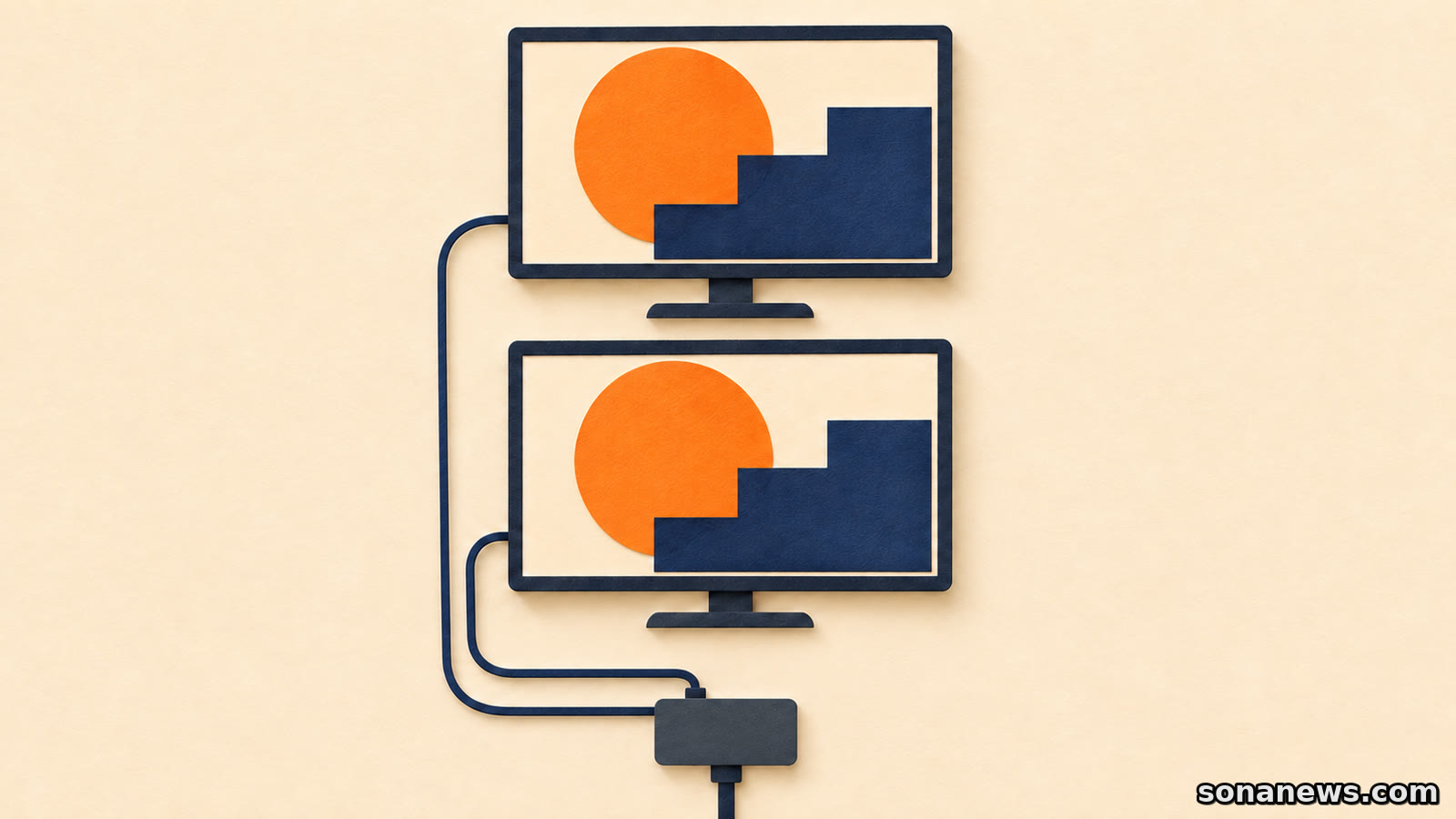

Two monitors are connected, both light up, and both show the same window. Choosing Extend in Windows seems the obvious next step. But if both screens are fed by a conventional HDMI splitter plugged into one video output, a setting cannot turn that single feed into two independent ones.
Microsoft states the limitation plainly in its external-monitor troubleshooting guidance: a display splitter duplicates the same signal instead of creating two independent signals. It cannot extend a desktop across the external monitors attached to it.
That is an established hardware distinction, not a new Windows restriction. Before replacing a cable, reinstalling a driver or buying another box with more sockets, identify whether the problem is a display setting, a missing connection or the kind of device carrying the picture.
The extra socket is not an extra workspace
A conventional splitter takes one video feed and sends copies to multiple displays. That can be the intended result, for example when the same presentation needs to appear on two screens. It is not inherently a broken or inferior arrangement. It simply solves a different problem from placing a document on one monitor and a separate application on another.
The useful distinction is between the number of physical screens and the number of independent display signals the computer can supply through the chosen connection. Two output sockets on a splitter do not, by themselves, give the computer two separately addressable desktops.
A laptop's own screen can make this more confusing. It may remain a separate workspace from the external feed, while the two monitors on the splitter still match each other. Extending between the laptop and that external feed does not make the two copies of the feed independent.
This article concerns ordinary video splitters. A dock or display adapter with multiple outputs can use different technology. Its supported display modes must be checked for the particular computer, rather than inferred from its shape, connector count or a seller's use of the phrase dual monitor.
Duplicate and Extend are different settings
For a Windows 11 PC with a supported multi-display connection, Microsoft documents Windows key + P as the shortcut for selecting a display mode. Duplicate shows the same thing on the displays. Extend spreads the desktop across screens and lets you move items between them.
That is a worthwhile first check when two independently connected monitors unexpectedly match. It is not a way to bypass a splitter's design. If only one signal reaches the splitter, selecting Extend does not give that box another signal to distribute.
In Settings, System, Display, the Identify control shows which number belongs to each detected display. The Multiple displays section also contains Detect for a connected display that is not appearing. These controls help establish what Windows has recognised; repeatedly pressing Detect cannot create a display connection the hardware does not provide.
Once independently detected displays are extended, their on-screen arrangement can be dragged to match their positions on the desk. Microsoft suggests testing the arrangement by moving the pointer between them. Do that after establishing the right connection, not as a substitute for it.
Check the computer before choosing a dock
Microsoft advises checking the graphics adapter's supported monitor count with its manufacturer when one external monitor works but additional ones do not. The presence of spare screens and cables is not evidence that the computer supports the desired combination.
Its troubleshooting guide identifies a compatible docking station or a suitable USB adapter as possible routes when the computer lacks enough video outputs. The qualification matters. A USB-C port may allow an additional video output through an adapter, but Microsoft does not say that every USB-C socket or every adapter will do so.
Before buying, look for the computer manufacturer's supported display configurations and the dock or adapter's compatibility information. The question is specific: can this computer drive these external displays independently through this device? A promise to connect two monitors is less useful if it does not state whether those monitors can show different content.
Also separate capability from picture quality. A resolution claim does not establish an extended-desktop capability. StarTech's splitter troubleshooting guidance says the source, splitter and destination must all support the selected resolution. That is a compatibility requirement for the picture being distributed, not proof that each output carries a different workspace.
A blank screen is a different investigation
If a monitor shows nothing at all, do not assume the splitter-versus-extension distinction explains it. Microsoft recommends checking the cable connection, trying another cable and testing the monitor with another system to help isolate the fault.
StarTech similarly recommends testing the source and display directly without the splitter, testing cables individually and avoiding extra video adapters during diagnosis. This reduces the number of components that could be responsible. A direct connection that works is useful evidence about that particular connection; it does not prove that the complete multi-monitor arrangement is supported.
For a work-managed PC, the organisation's support team can check the exact computer, graphics hardware and dock combination. Describing the connection path is more useful than saying only that the second screen is not working. Include whether it is blank, duplicates another screen or appears as a separate display in Windows.
The buying rule is straightforward: choose the function before counting ports. If the aim is the same picture in two places, a compatible splitter may be appropriate. If the aim is independent workspaces, verify a supported multi-display path. Two illuminated panels are not, on their own, two independently controllable desktops.
Sources
- Microsoft Support, “Troubleshoot external monitor connections in Windows”, retrieved 10 November 2026. Explicitly verifies that a splitter duplicates one signal rather than creating independent signals, and documents graphics-adapter limits, compatible docks/adapters and basic connection tests
- Microsoft Support, “How to use multiple monitors in Windows”, retrieved 10 November 2026. Verifies the Windows 11 Duplicate/Extend distinction, Windows key + P, Identify, Detect and arranging independently detected displays. Windows 10 instructions on the same page are not used as the article's setup path
- StarTech.com, “How do I troubleshoot a video splitter setup when everything is connected but there is no video output?”, retrieved 10 November 2026. Verifies component-by-component checks, direct source-to-display testing, avoiding adapters during diagnosis and the shared resolution requirement. This manufacturer guidance is not an independent product review or an endorsement
Help us improve
Was this article useful?
One anonymous tap helps Sona improve future reporting, headlines and source context.
Up next

On Windows, a file can stay visible without its contents being stored on the PC. The wrong clean-up command can remove it from OneDrive as well.
Continue readingMore in Tech