Restarting your router is not a factory reset
A reboot keeps your Wi-Fi settings. A factory reset can erase them, and the button or app command that does it varies by device. Check the action before troubleshooting.
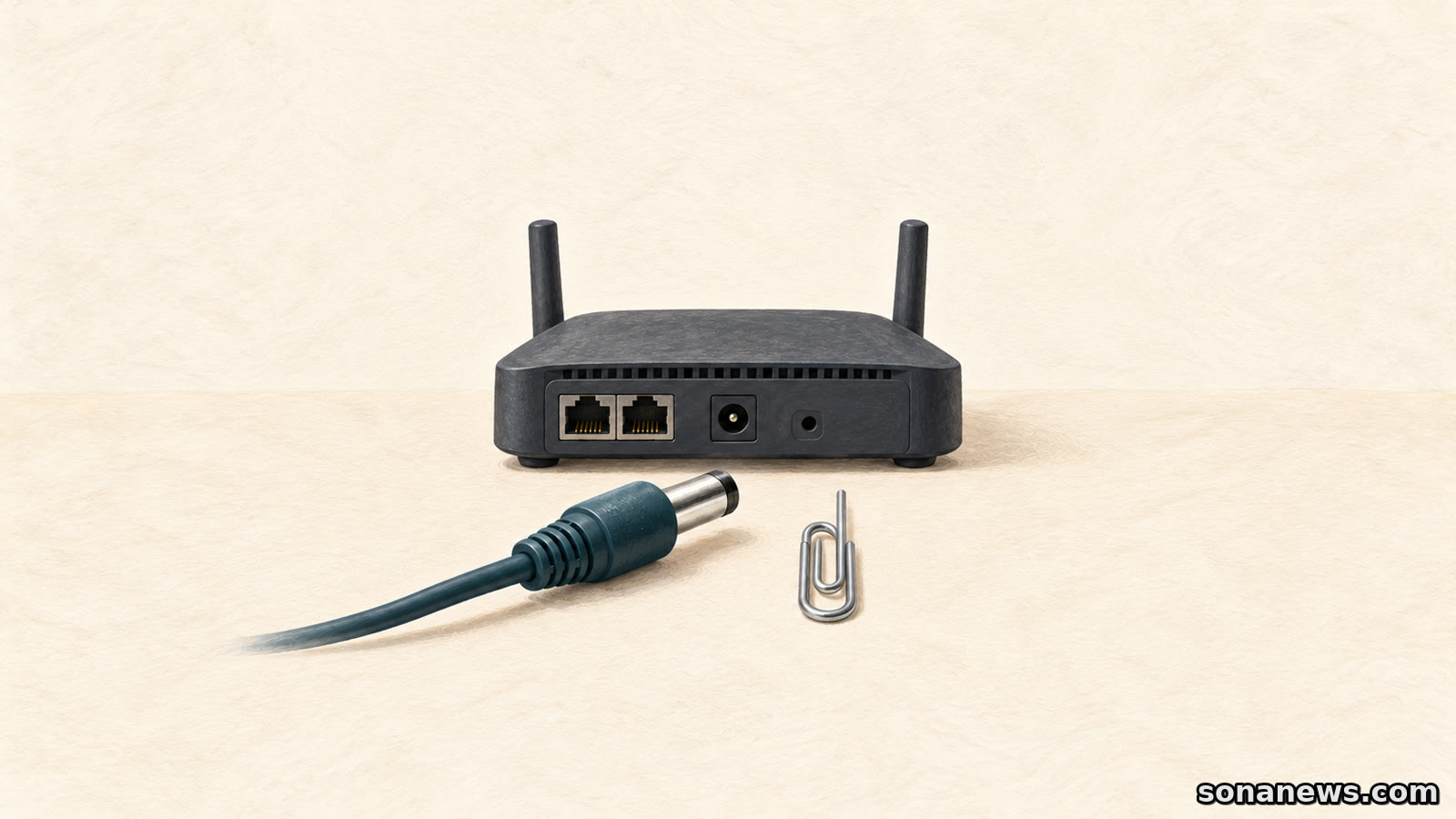

The Wi-Fi has stopped behaving, and someone suggests resetting the router. Before reaching for a paper clip, establish what they mean. Restarting the device and restoring its factory settings are different operations. One briefly interrupts service; the other can leave you rebuilding the network.
Manufacturers make that distinction in their instructions. TP-Link's Deco guide says a reboot restarts the unit without erasing its settings, while a reset clears its configuration. ASUS warns that restoring factory defaults clears internet settings, the wireless network name and its password. This is an explanation of existing controls, not a newly announced feature.
The useful question is whether you want the router to run again with the same configuration or deliberately start from scratch. The words on a button or in an app matter more than the casual phrase “turn it off and on”.
For a temporary connection problem, look for the documented restart or reboot procedure for your equipment. TP-Link lists both an app command and unplugging then reconnecting power as ways to reboot a Deco unit. Neither is presented as a factory reset.
Google likewise separates restarting Nest Wifi or Google Wifi from factory resetting it. Its restart instructions offer a power-cable method and controls in the Google Home app. For the cable method, Google specifies waiting 10 to 20 seconds before reconnecting, then allowing one to two minutes for the device to power on fully.
Those timings belong to Google's instructions, not every router. Use the procedure for the model and service you have, and expect the connection to be unavailable while it restarts. Google says restarting can sometimes fix common issues; that is not a promise that it will repair every cause of slow or missing internet access.
If you are only trying to restart, a recessed reset control is not a substitute for finding the right instruction. The fact that a device reboots after a factory reset does not make the two operations equivalent.
A factory reset is appropriate when you intentionally need to clear the configuration, such as preparing supported equipment for a new owner or starting a new setup. It is not simply a more thorough version of a harmless restart.
ASUS tells users to save any internet account details, passwords or special settings they need, or ask their internet service provider before restoring defaults. Its example makes the practical consequence clear: the router's existing internet and wireless settings are deleted, and it must be configured again.
Google gives a similar warning for its Wifi products. After a factory reset, the router and points need to be set up again. It recommends noting the network name, password and custom settings beforehand. Its examples include guest-network settings, Family Wi-Fi rules, port forwarding and WAN settings.
That preparation is more useful than assuming you will remember what was changed years ago. For equipment supplied or managed by a broadband provider, check that provider's instructions before erasing the setup. Do not assume another manufacturer's guide explains how your connection will be restored.
The familiar advice to hold a reset button for a fixed number of seconds is not a reliable cross-brand rule. The controls, timing and confirmation signals vary.
TP-Link's current Deco guide says pressing the reset button on the bottom of the unit for one second resets it. ASUS's guide, illustrated with the RT-AC66U B1, describes a different button-hold procedure and explicitly notes that models can differ. Google's factory-reset instructions also distinguish between Nest Wifi Pro, Nest Wifi and Google Wifi hardware.
The point is not to choose an average between those instructions. Identify the exact device, find its manual or support page, and establish what the control does before pressing it. A short press should not be assumed harmless just because another product requires a longer one.
Nor should a restart instruction be applied halfway through a factory reset. Both ASUS and Google warn against removing power during the restoration process they describe. Once an intentional reset is under way, follow that device's completion instructions rather than improvising another power cycle.
The same distinction matters without a physical button. In TP-Link's Deco app instructions, selecting a unit and choosing “Remove” resets it. Choosing “Reboot” restarts it. Similar-looking navigation can therefore lead to substantially different outcomes.
Mesh systems add another scope question: are you acting on one unit or the whole network? TP-Link documents a separate “Reboot Network” command. If intentionally resetting the entire Deco system through the app, its instructions say to remove expansion units first and the primary unit last. That is a Deco-specific sequence, not a universal mesh procedure.
Google's documentation adds a further distinction for people handing equipment on. A factory reset through the Google Home app erases device and app information, including information used for cloud services, and removes the router and points from the Google Account. Using the hardware reset button clears the device but does not immediately remove the app or cloud information; the network can still appear in the app.
A reset light sequence is therefore not proof that every account association has been removed. For a transfer, follow the manufacturer's full reset and account-removal guidance rather than treating a button press as the whole handover.
Before confirming anything, make three checks: which device is selected, whether the command says restart or factory reset, and whether it affects one unit or the entire network. If the intention is a factory reset, establish how you will restore the connection afterwards.
If the intention is merely to restart, leave configuration-erasing controls alone. Read the model-specific reboot procedure and give the equipment time to return. A router coming back with its familiar network intact and a router waiting for a new setup are two different results, even if both began with the word “reset”.
Sources
- TP-Link, “How to Reset Deco or Reboot Your TP-Link Deco System”, updated 8 October 2026, retrieved 27 October 2026. Verifies retained settings on reboot versus erased configuration on reset, separate Remove/Reboot app actions, the Deco one-second reset instruction, whole-network reboot and expansion-before-primary reset sequence. Scope is the supported Deco products, not every router
- Google Home and Nest Help, “Restart Nest Wifi or Google Wifi devices”, retrieved 27 October 2026. Verifies restart via power cable or app, the specific waiting intervals and the qualified statement that restarting can sometimes fix common problems. These timings are not generalised
- ASUS Support, “How to reset the router to factory default setting?”, updated 23 February 2026, retrieved 27 October 2026. Verifies deletion of internet and wireless settings, preserving provider credentials or asking the ISP first, model-dependent reset controls and the warning not to remove power during restoration. No screenshot or example credential is reproduced
- Google Home and Nest Help, “Factory reset your Wifi device”, retrieved 27 October 2026. Verifies setup after reset, settings to note, transfer use cases, product-specific procedures and the difference between app reset and hardware reset for app/cloud data and account removal. The article makes no universal secure-erasure claim
Help us improve
Was this article useful?
One anonymous tap helps Sona improve future reporting, headlines and source context.
Up next
A RAID mirror can keep files available when a drive fails. Recovering a deleted folder, or losing the whole box, needs a different kind of protection.
Continue readingMore in Tech